How to Fix Metro 2 Header & Trailer Segment Formatting Errors
Header and Trailer errors are the most common reason Metro 2 files get rejected by credit bureaus — and they are almost always fixable in minutes once you know what to look for. This guide walks you through every common error, what causes it, and exactly how to fix it.
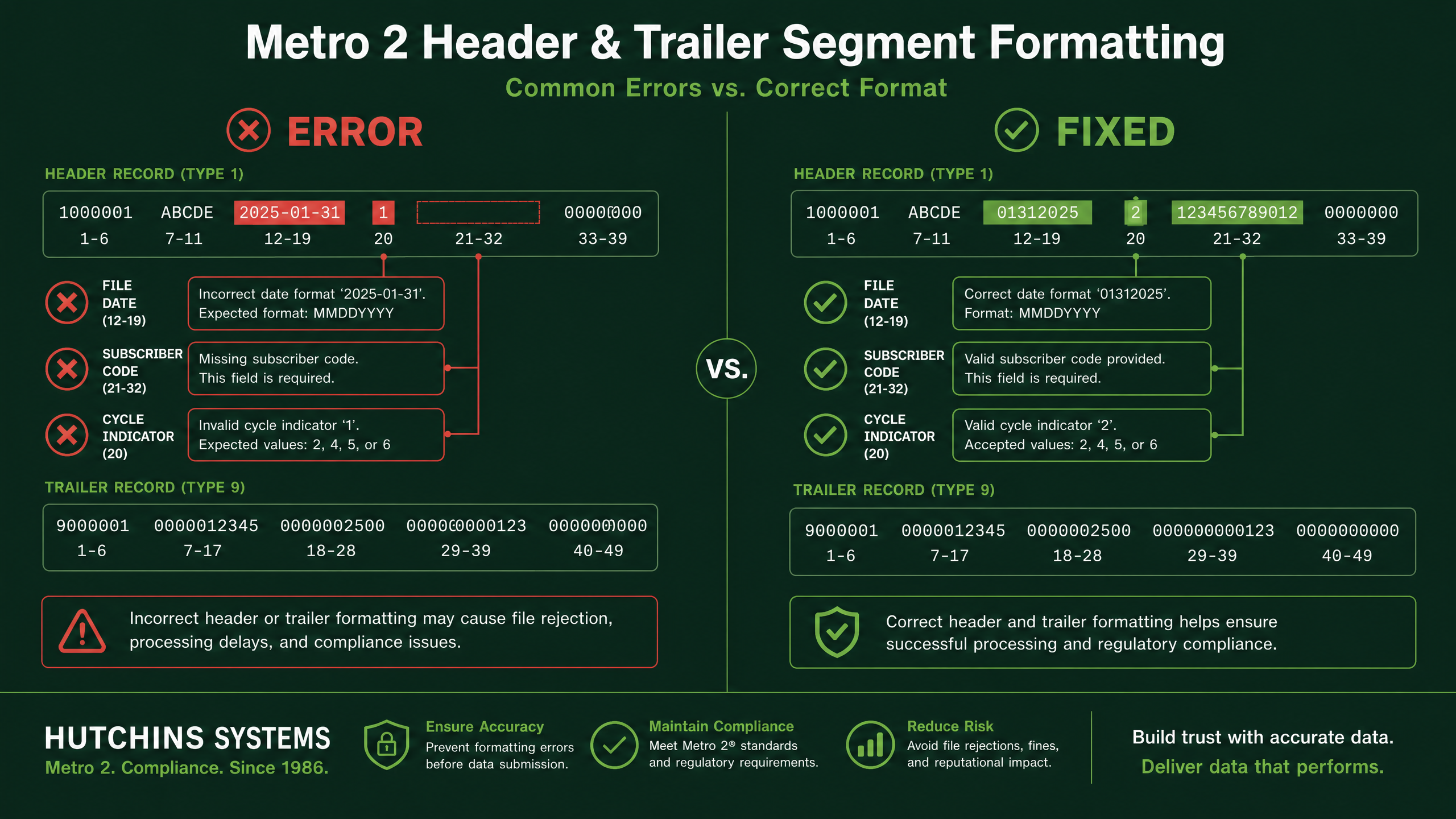
Why Header and Trailer Errors Are So Costly
Unlike errors in individual Base Segments (which typically affect only the specific account with the error), Header and Trailer errors cause the entire file to be rejected. That means none of your accounts get updated for that month — not the current accounts, not the paid-off accounts, not the delinquent accounts.
A single missed monthly submission can result in stale data on consumer credit files, FCRA compliance exposure, and consumer disputes. The bureaus have strict 30-day windows for data furnishers to report, and a rejected file that is not resubmitted in time counts as a missed reporting cycle.
A Header or Trailer error rejects the entire file — not just one account. Fix these first before investigating any Base Segment errors.
Header Record Errors
Activity Date in Wrong Format
Bureau rejects the file with 'Invalid Activity Date' or 'Date Format Error'
The Activity Date must be in MMDDYYYY format (e.g., 01312025 for January 31, 2025). Many systems export dates in YYYYMMDD or MM/DD/YYYY format, which Metro 2 does not accept.
Verify your Metro 2 software is formatting the date as MMDDYYYY with no slashes, dashes, or spaces. The field is exactly 8 characters. If you are generating files manually, reformat all date fields to MMDDYYYY.
2025-01-31 or 01/31/202501312025Program Identifier Missing or Incorrect
Bureau rejects with 'Invalid Program Identifier' or 'Subscriber Not Found'
Your Program Identifier is the unique identifier the bureau assigned to your organization when you were credentialed. It must appear in the Header Record exactly as issued — no extra spaces, no leading zeros added or removed.
Locate your Program Identifier in your original bureau credentialing approval email or data furnisher agreement. Enter it exactly as provided. If you have separate codes for different bureaus, make sure you are using the correct code for each bureau's submission.
0012345 (leading zero added)12345 (exactly as issued)Reporter Name Mismatch
Bureau rejects with 'Reporter Name Does Not Match Account' or triggers a manual review
The Reporter Name in the Header must exactly match the legal business name on your data furnisher agreement. Even minor differences — a comma, 'Inc.' vs 'Inc', or 'LLC' vs 'L.L.C.' — can cause mismatches.
Pull up your original data furnisher agreement or credentialing approval letter and copy the company name character-for-character into your Metro 2 software settings. Do not abbreviate or reformat.
ABC Lending LLCABC Lending, LLCProgram Date or Software Version Outdated
Bureau flags the file for review or rejects with 'Outdated Software Version'
The Header Record includes fields for your Metro 2 software's Program Date and Version Number. Bureaus use these to verify you are running software that complies with the current CRRG® specification. If your software has not been updated in over 12 months, this can trigger a rejection.
Update your Metro 2 software to the latest version. Hutchins Systems releases updates whenever the CRRG® specification changes. If you are using Credit Time 2000©, e-CreditTime, or MORFi, contact support to verify you are on the current version.
Program Date: 01012022 (3 years old)Program Date: reflects current software version dateMissing or Blank Required Header Fields
Bureau rejects with 'Required Field Missing' or 'Header Record Incomplete'
The Header Record has 18 required fields. Any blank required field causes an immediate rejection. Common culprits: Reporter Telephone Number left blank, Reporter Address missing suite/unit number, or Cycle Identifier not set.
Run your Metro 2 file through a compliance audit tool before submission. Hutchins Systems software validates all required Header fields and flags any that are blank or incorrectly formatted before the file is generated.
Reporter Telephone: [blank]Reporter Telephone: 8333877545 (10 digits, no formatting)Trailer Record Errors
Record Count Does Not Match Actual Base Segments
Bureau rejects with 'Record Count Mismatch' or 'File Integrity Error'
The Trailer Record's Record Count field (Total Base Records) contains the total number of Base Segments being reported — Base Segments ONLY. The Header and Trailer records are NOT included in this count. If you have 340 Base Segments, the Record Count must be 340, not 342. A common mistake is including the Header and Trailer in the count, which causes a mismatch.
Set the Record Count to the number of Base Segments only. Do not add 2 for the Header and Trailer. Always generate the Trailer Record last, after all Base Segments and supplemental segments have been finalized. Never manually add or remove records from a Metro 2 file after generation — regenerate the entire file instead.
Record Count: 342 (incorrectly includes Header + Trailer in the count)Record Count: 340 (Base Segments only — Header and Trailer are NOT counted)Missing Trailer Record
Bureau rejects with 'File Truncated' or 'Missing Trailer Record'
The Trailer Record is required. If a file transfer is interrupted, if the file was manually edited and the last line was accidentally deleted, or if the Metro 2 software has a bug, the Trailer may be missing.
Open the Metro 2 file in a text editor and verify the last line starts with the Trailer Record identifier. If it is missing, regenerate the file from your Metro 2 software — do not attempt to add a Trailer manually unless you are certain of the correct format.
File ends with last Base Segment recordFile ends with Trailer Record containing correct Record CountBlock Count Field Populated Incorrectly
Bureau rejects with 'Block Count Error' or file fails validation
The Block Count field in the Trailer Record contains the number of blocks on the file, if applicable. This field is only relevant when your bureau agreement requires block-level file organization. Many data furnishers incorrectly populate this field by setting it equal to the Record Count, or by setting it to zero when a value is required by their specific bureau agreement.
Consult your data furnisher agreement or bureau technical specifications to determine whether Block Count is required for your submission. If your agreement does not require block-level organization, follow the specific instructions provided by the bureau for this field. If you are using Hutchins Systems software, this field is handled according to each bureau's current requirements automatically.
Block Count populated with Record Count value when bureau agreement does not require block organizationBlock Count set per your specific bureau agreement requirements — only populate if applicableDeep Dive: The Cycle Indicator Field
The Cycle Indicator (position 20 in the Header Record) is used when reporting by billing cycles. Cycle reporting is generally appropriate when the data furnisher has multiple billing cycles. Reporting would take place at the end of each billing cycle, resulting in more accurate and current reporting of account statuses. Contains the cycle identifier for the information being reported, if reporting by cycles. If data contains more than one cycle, report the first cycle identifier found on the data.
The cycle identifier value used in this field is determined by your bureau agreement and the specific billing cycles your organization operates. If you are unsure what cycle identifier to use, consult your data furnisher agreement or contact your bureau representative.
💡 If your data contains more than one cycle, report the first cycle identifier found on the data. If you are unsure which cycle identifier applies to your bureau agreement, contact your bureau representative or call Hutchins Systems at (833) 387-7545.
Bureau-Specific Header Requirements
While the Metro 2 format is standardized by the CDIA, each bureau has specific requirements for how certain Header fields must be populated. Hutchins Systems has been submitting files to all four bureaus since 1986 and knows these nuances firsthand.
| Field | Equifax | Experian | TransUnion |
|---|---|---|---|
| Program Identifier | Alphanumeric, assigned by CRA | Alphanumeric, assigned by CRA | Alphanumeric, assigned by CRA |
| Activity Date | MMDDYYYY | MMDDYYYY | MMDDYYYY |
| Cycle Indicator | Per bureau agreement | Per bureau agreement | Per bureau agreement |
| Reporter Name | Must match DFA exactly | Must match DFA exactly | Must match DFA exactly |
DFA = Data Furnisher Agreement. Always verify your specific requirements with your bureau representative.
Step-by-Step Header/Trailer Diagnostic Checklist
Use this checklist every time you generate a Metro 2 file. Run through it before submission to catch errors before the bureau does.
The Best Fix Is Prevention
Every error in this guide can be prevented by running your Metro 2 file through a compliance audit engine before submission. Hutchins Systems software validates all Header and Trailer fields against the current CRRG® specification and flags errors with specific field-level descriptions — so you know exactly what to fix before the bureau ever sees the file.